0. Introduction
Previous Concepts
-
Flag: It is a variable value managed on a remote platform. Our application will consult it to know what behavior to perform in each execution. Although its generally used type is Boolean (true/false), it can also have a numeric or text string value.
-
Context: The value of a flag is calculated based on an execution context. That is, a flag called “applyDiscount” can have a true value for user A, but for user B have a false value. The information of the user making the purchase is what we call context. Invocations to the LaunchDarkly service must inform about the execution context.
-
Segment: They are the set of rules that will analyze the execution context and based on that will return one value or another for the same flag.
1. Installation
If you want to connect to LaunchDarkly through the LD-Relay you can use this Dockerfile example
1.1 Maven dependency
Add the dependency
<dependency>
  <groupId>com.launchdarkly</groupId>
  <artifactId>launchdarkly-java-server-sdk</artifactId>
  <version>7.0.0</version>
</dependency>
Initialize it
Basic usage:
LDContext context = LDContext.builder("context-key-123abc")
  .name("Sandy")
  .build();

boolean flagValue = client.boolVariation("flag-key-123abc", context, false);

if (flagValue) {
  // Application code to show the feature
}
else {
  // The code to run if the feature is off
}
2. Using LaunchDarkly Relay
version: '3.7'

networks:
  featureflags-demo-network:
    name: feature-flags-demo-network

services:
  ld-relay:
    image: launchdarkly/ld-relay
    environment:
      STREAM_URI: https://stream.eu.launchdarkly.com
      BASE_URI: https://sdk.eu.launchdarkly.com
      EVENTS_HOST: https://events.eu.launchdarkly.com
      LD_ENV_test: ${APIkey_for_test_env}
      LD_ENV_itg: ${APIkey_for_itg_env}
      LD_ENV_prod: ${APIkey_for_prod_env}
      USE_EVENTS: "true"
    ports:
      - "8030:8030"
    networks:
      - featureflags-demo-network
3. LaunchDarkly SaaS
3.1 FLAGS
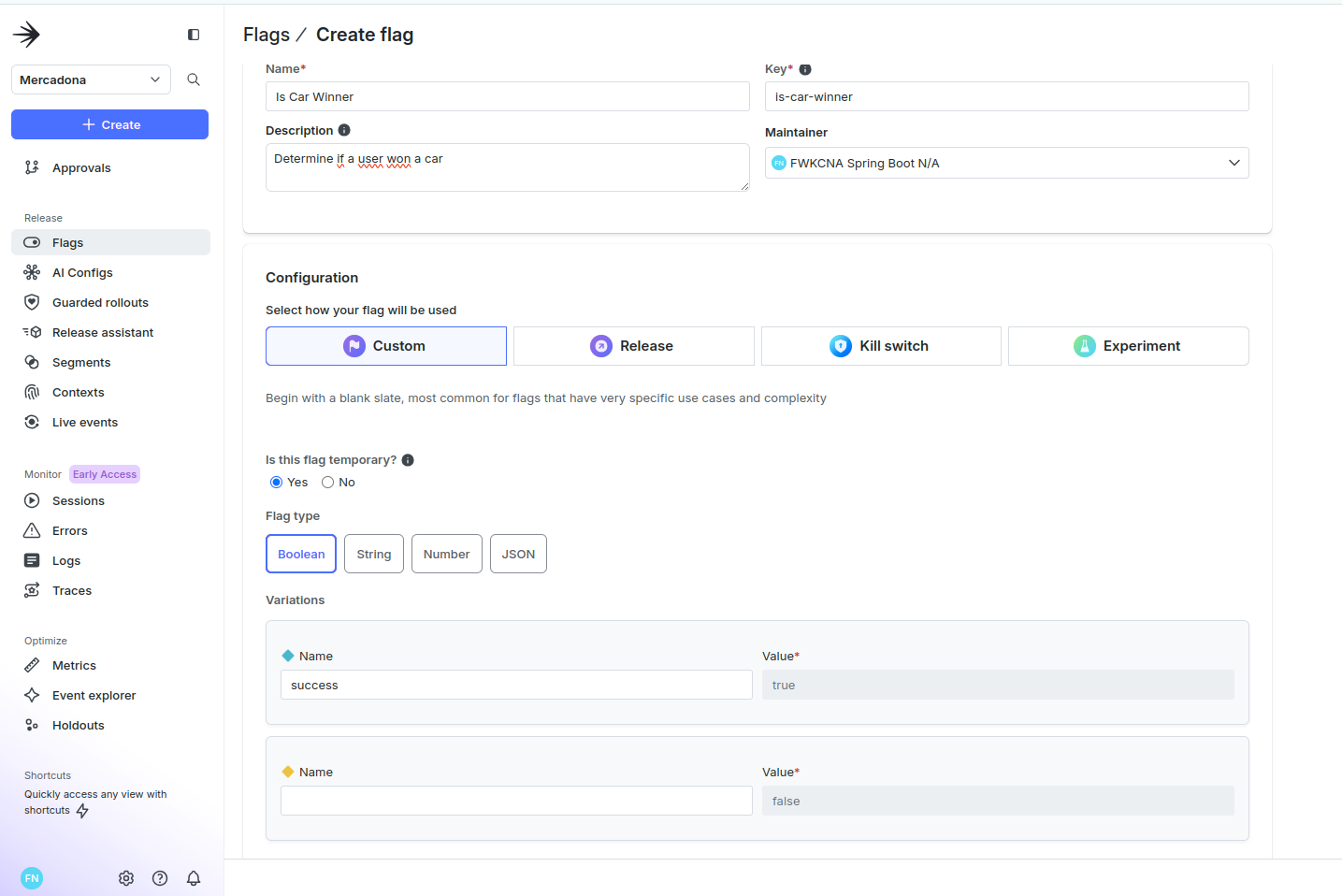
Let’s create the flag is-car-winner, go to the Flags section or click the Create button
We choose the friendlyName and the key that the flag will have is-car-winner
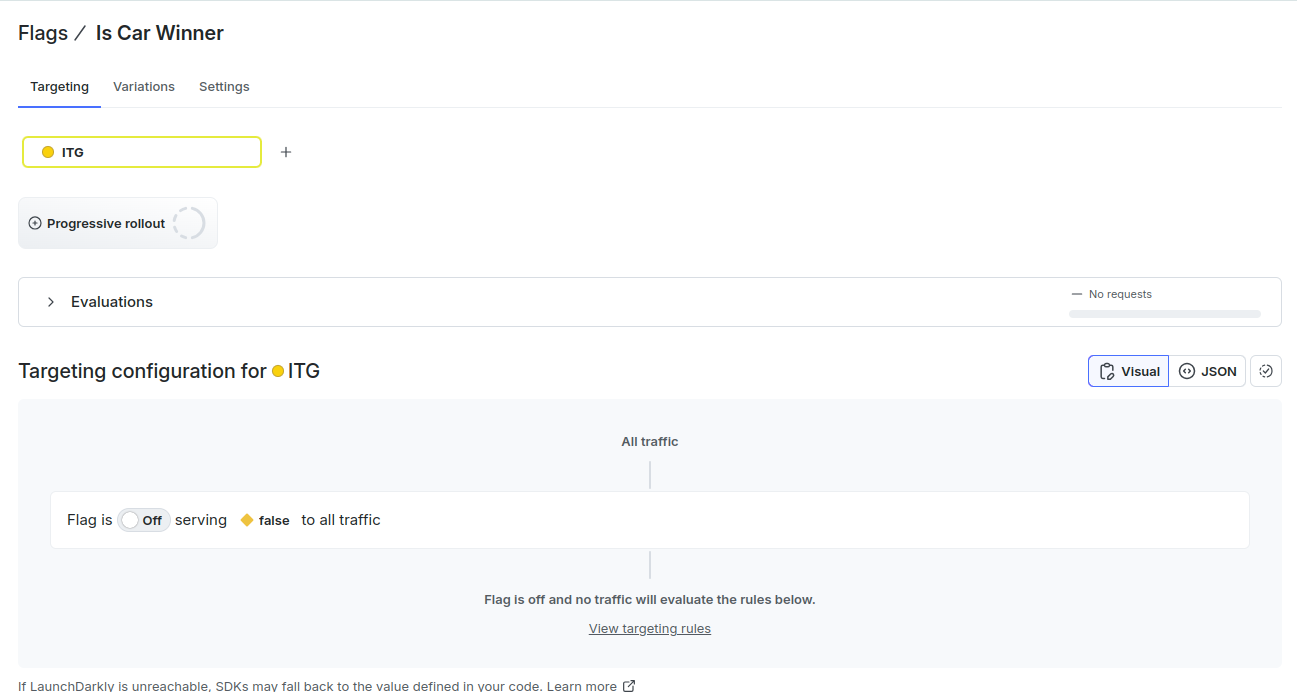
We click on Create Flag and it takes us to the general view of the Flag which indicates that for all traffic it is serving the False value, since it is not activated:
3.2 SEGMENTS
Let’s create a segment, which is a set of rules that govern what the flag value is for each execution.
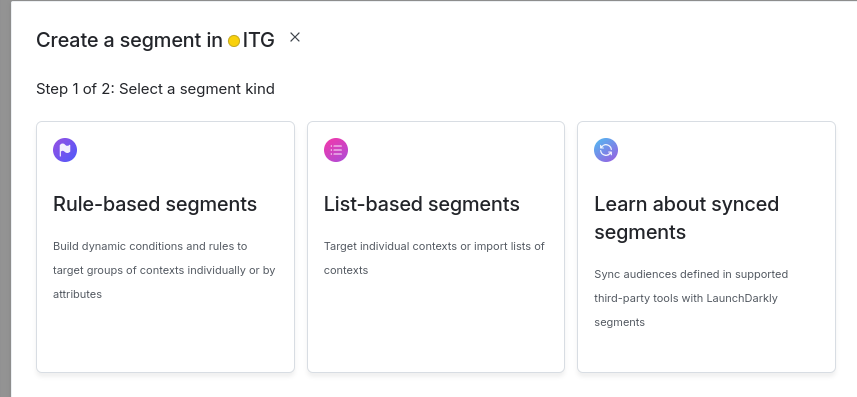
Go to the Segments section and click on Create Segment. In the wizard we have 2 options to create Segments:
3.2.1 List-Based Segments
This is the simplest configuration since it only creates a rule that checks that the context key has a value that is within the list.
Create the segment
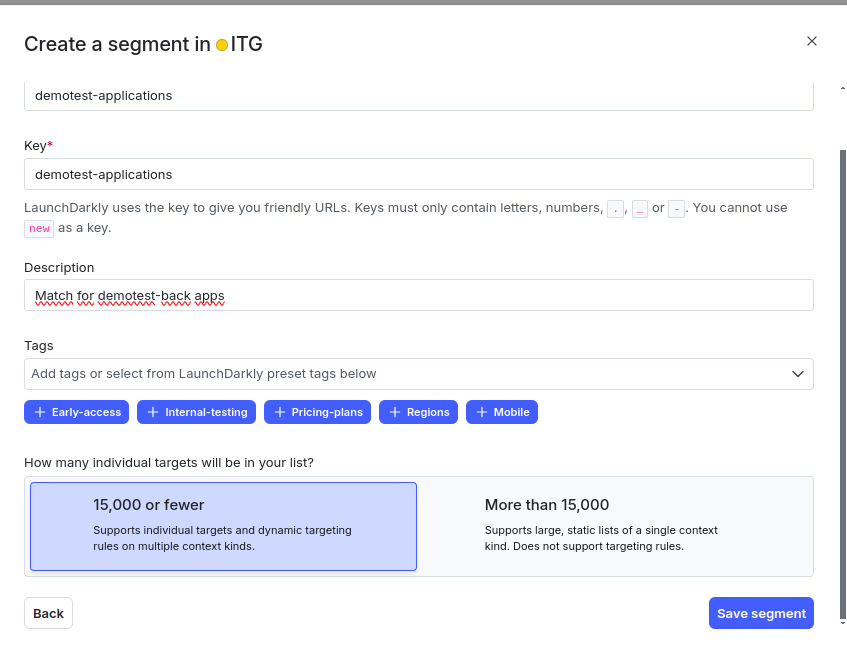
By default it has already created a rule that is configured with includedkeys and excludedKeys.
Let’s add the context name demotest-feature-flag-app to the included ones, including it in the text box and clicking Add:
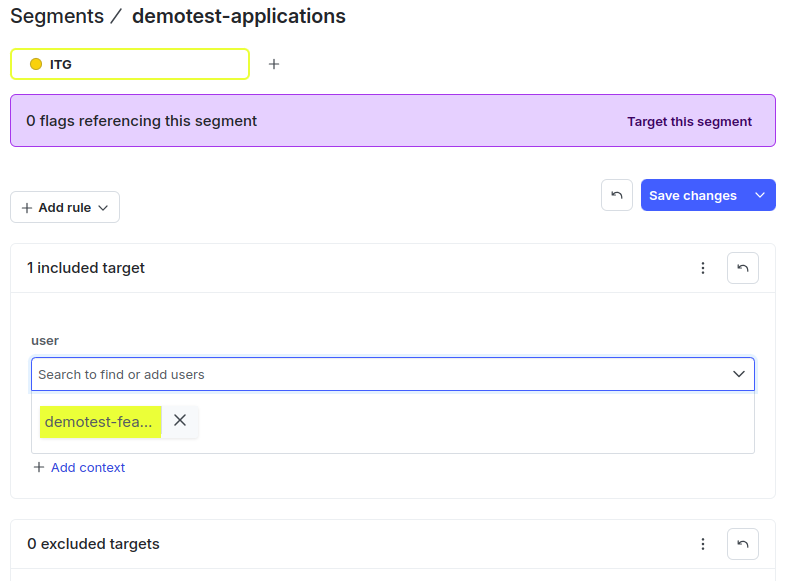
Click Save.
Associate the Segment to the Flag
At the top we see the warning
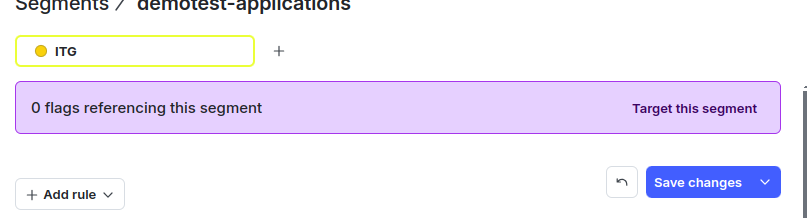
Click on Target this segment and select the flag from the list
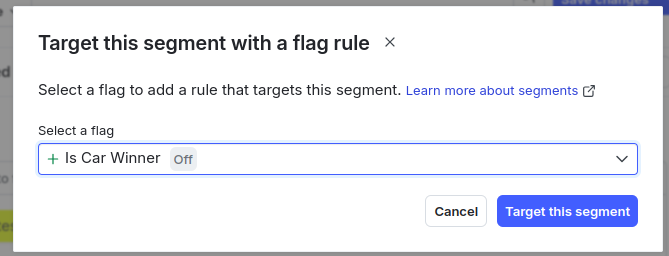
Click Target to save the changes.
In the flag summary screen we can see a traffic diagram that indicates that since the flag is not activated, the segments or rules will not be evaluated
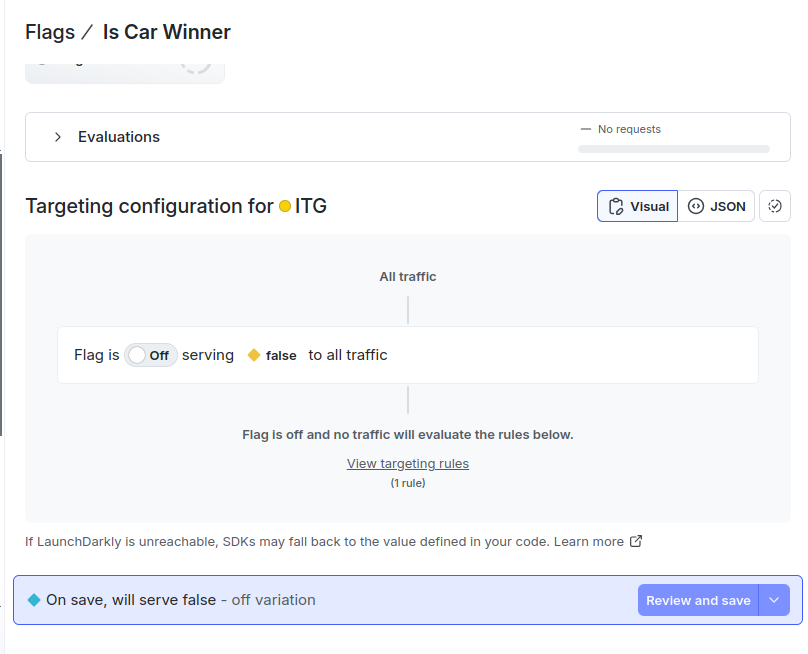
Let’s activate the flag by setting it to On. When activating it, it retrieves the rule we created in the segmentation and asks us to indicate what the value of the flag is if evaluating the context against the segment is favorable. We indicate that for that case it returns true and we modify the Default rule to serve Off by default, this way the flag will only return true for contexts that are in the segment we created.
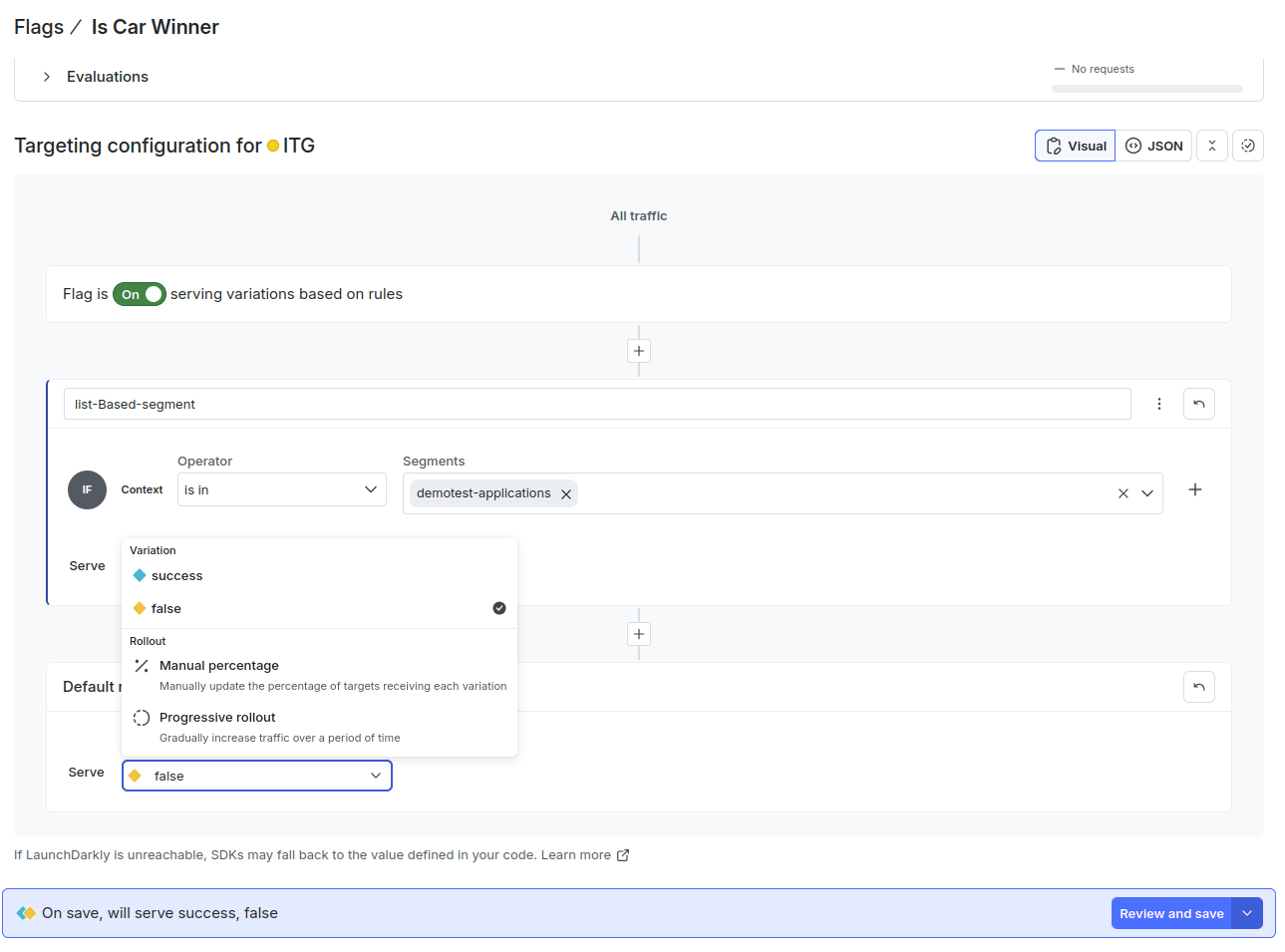 Click Review and Save and we would have the flag activated and segmented.
3.2.2 Rule Based
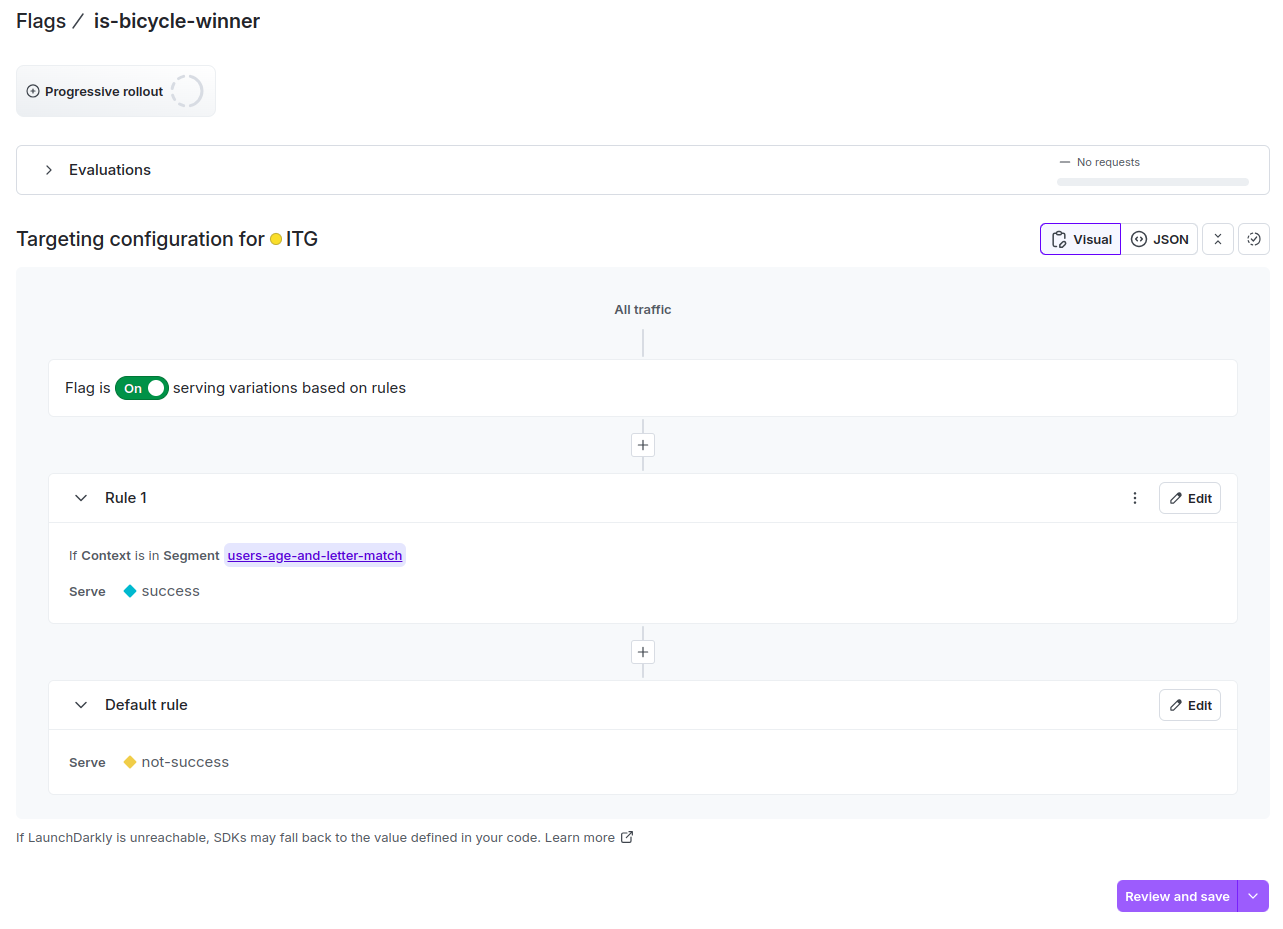
Let’s create another rule is-bicycle-winner
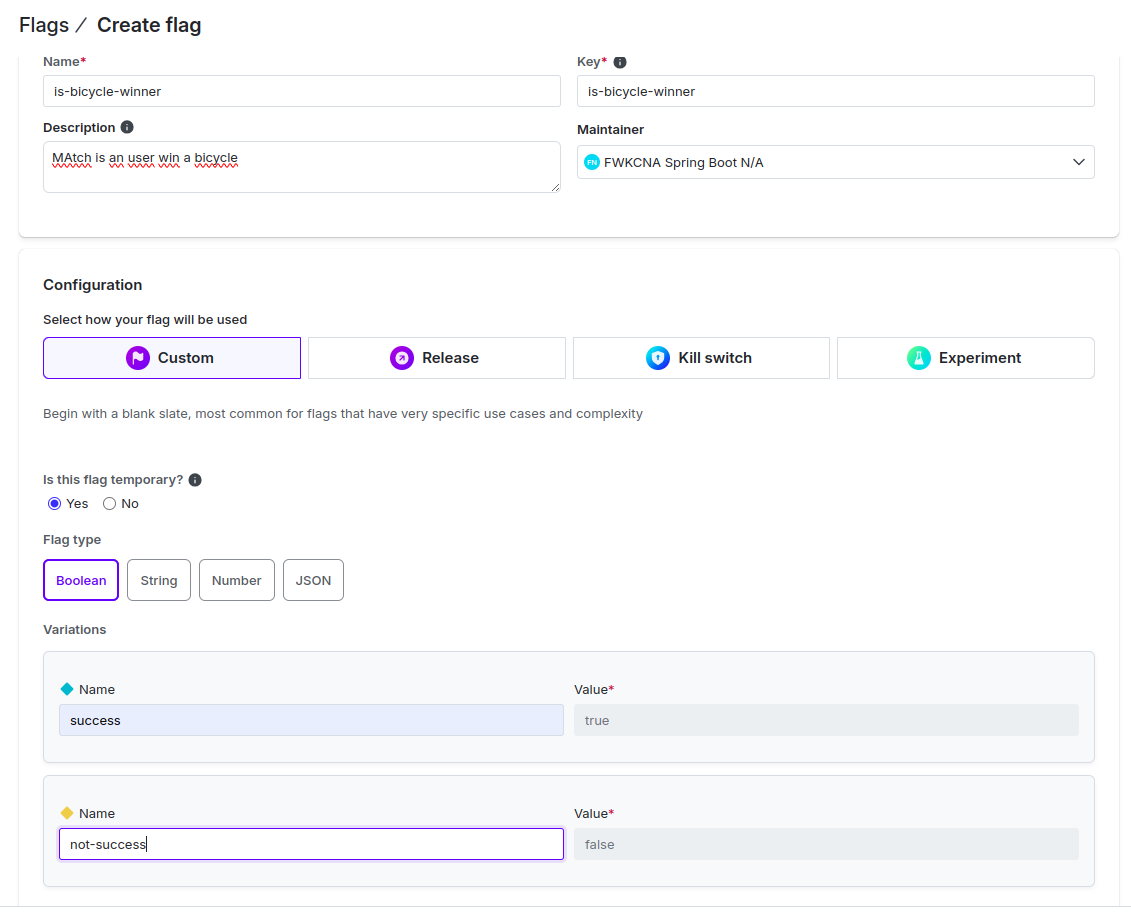
This segmentation gives us a finer degree for validations. This approach is based on the contextValues we send. It can have several rules on different values of a context to execute.
We create a new rule and choose Rule-Based in the wizard
Let’s create a segment based on 2 rules: - the person’s age, based on whether they are older or not than 18 years - the person’s name starts with “D”.
It will look like this:
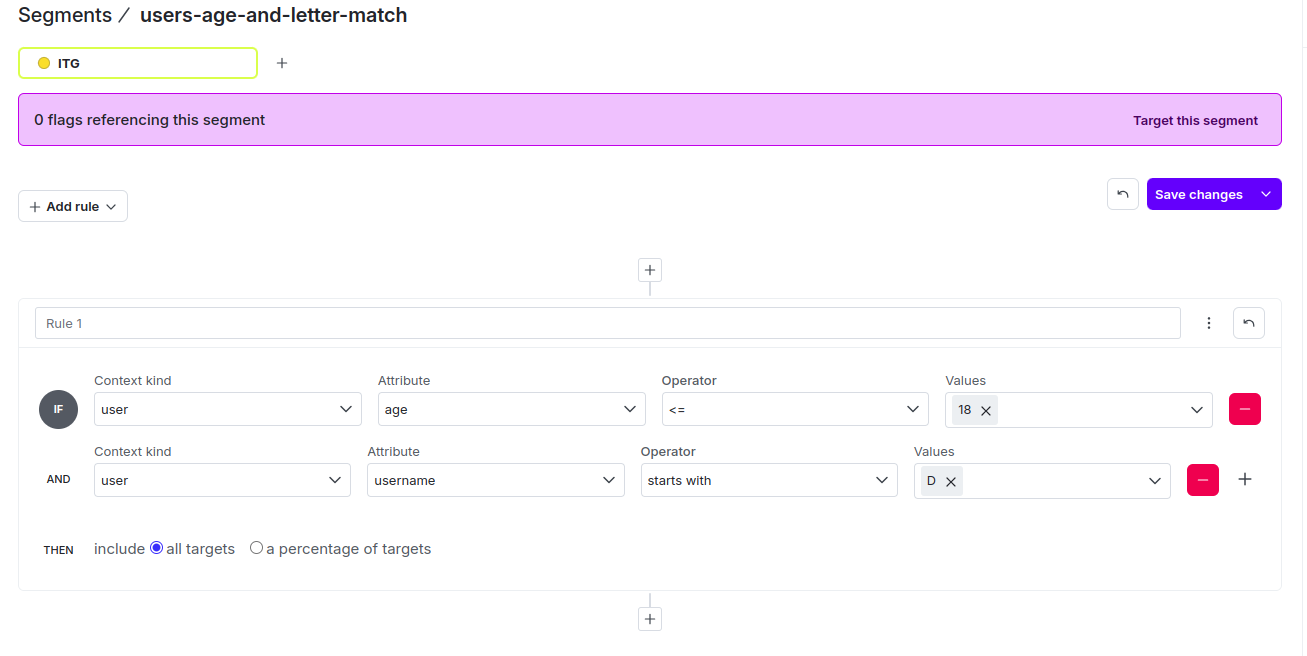
We activate the flag and set the Default Rule to false and Rule 1 to true conditioned to the users-age-and-letter-match segment