Cucumber
1.Introduction — What is it?
XRay is a Jira Add-on (or it can also be used as an external service) to organize Test Plans and their executions.
References: https://www.youtube.com/watch?app=desktop&v=PbOGhtof4WY
2.Creating Issues in JIRA
We go into JIRA and click on Create and create an issue of type Test.
This test will refer only to the login page use case.
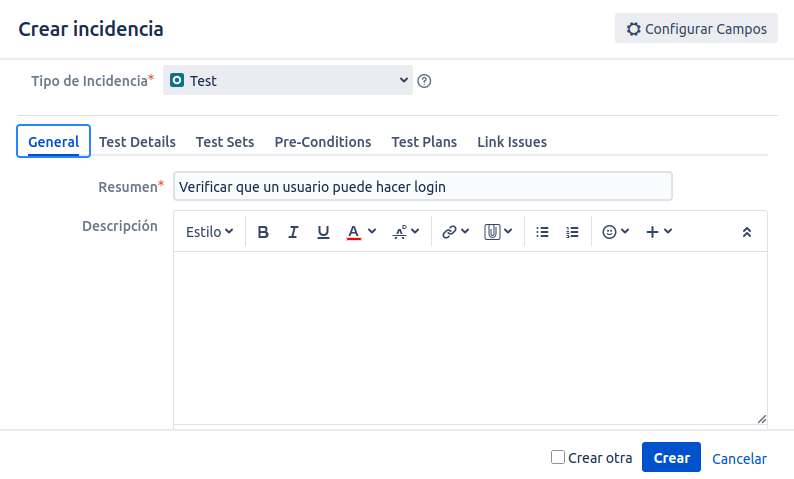
In the Test Details section we choose type cucumber and write the steps of the scenario that the test will cover in Gherkin language:
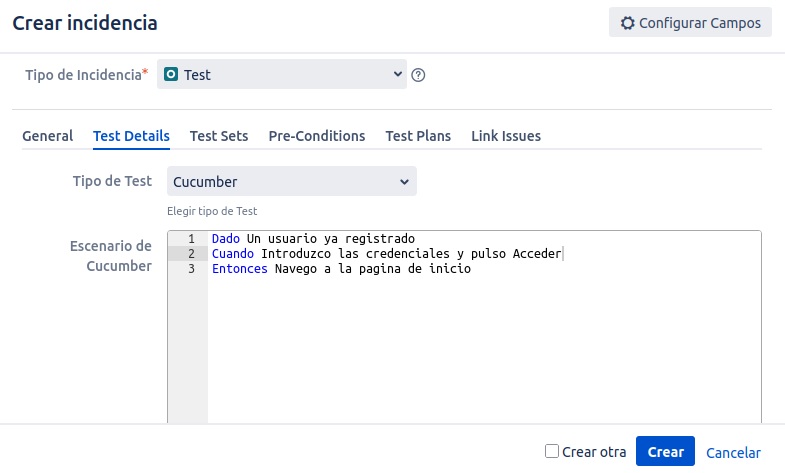
We would now have a Test (scenario/use case) defined with id 107, but let’s create another test which would be the logout.
We repeat the steps:
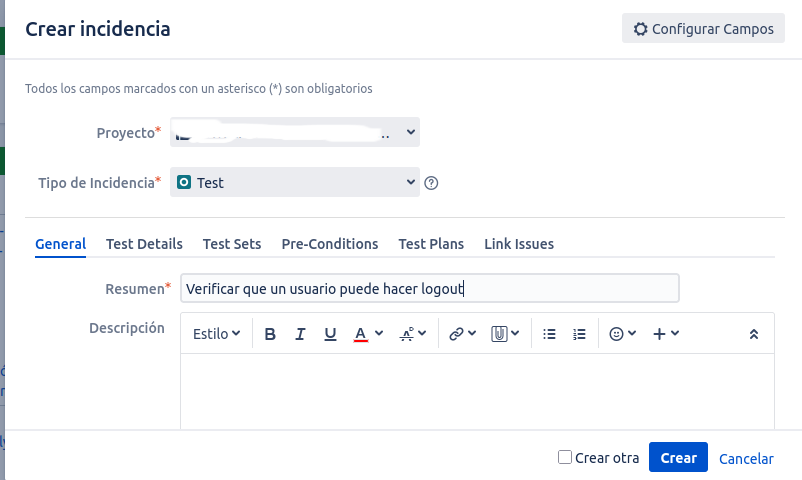
And the steps of the logout scenario:
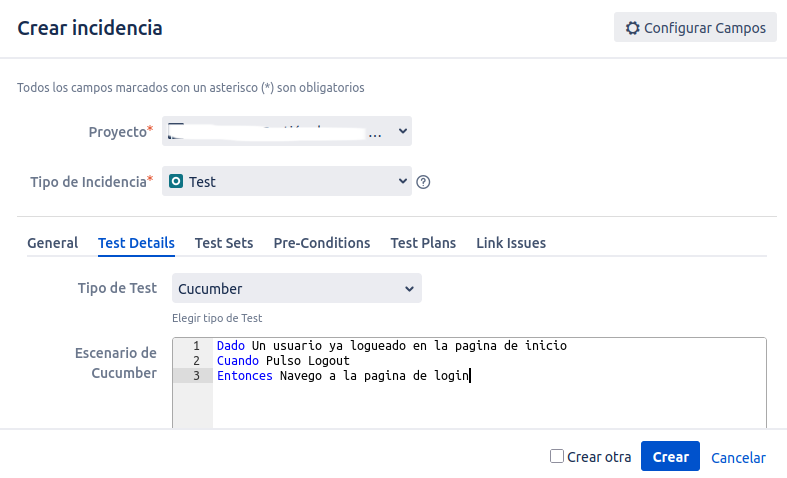
Task 108 would now be created.
3.Creating a Test Execution
Once we have defined the use cases with their scenario, we can create Test Executions.
A Test Execution can cover several scenarios. In this case we will create a test execution that must cover login and logout.
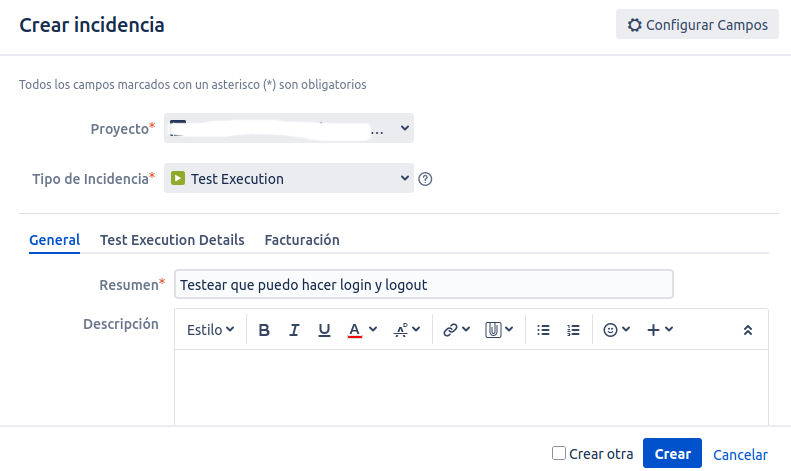
We click on Create and choose Test Execution:
In the Test Execution Details section we choose the 2 Issues related to the Login and Logout Tests:
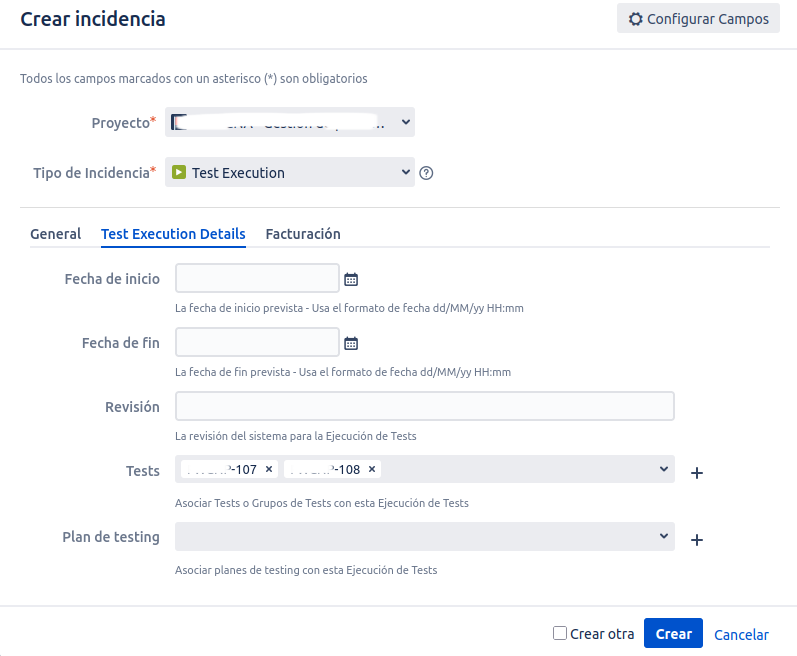
The Test Execution with id 109 is now created.
4.Preparing the Test Execution
We navigate to the Test Execution issue and see that it has 2 associated tests (107 and 108) and that the status is TODO since they have not been executed yet.
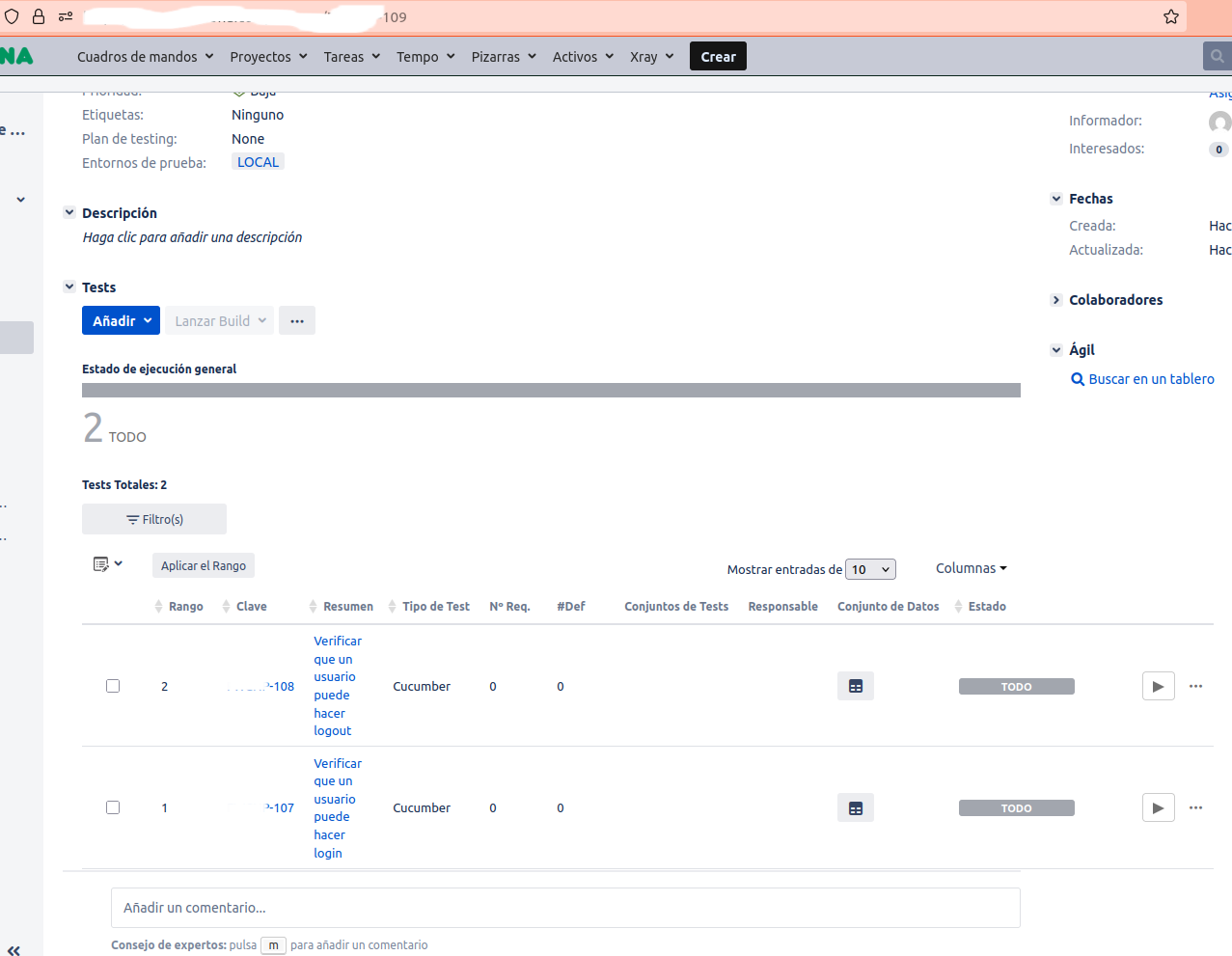
We are going to generate the .feature file that we will use in cucumber. By generating it from this Test Execution, we will obtain a .feature file that will contain the 2 scenarios from the 2 associated tests.
We click on the Test… button and at the end we find the option Export to cucumber:
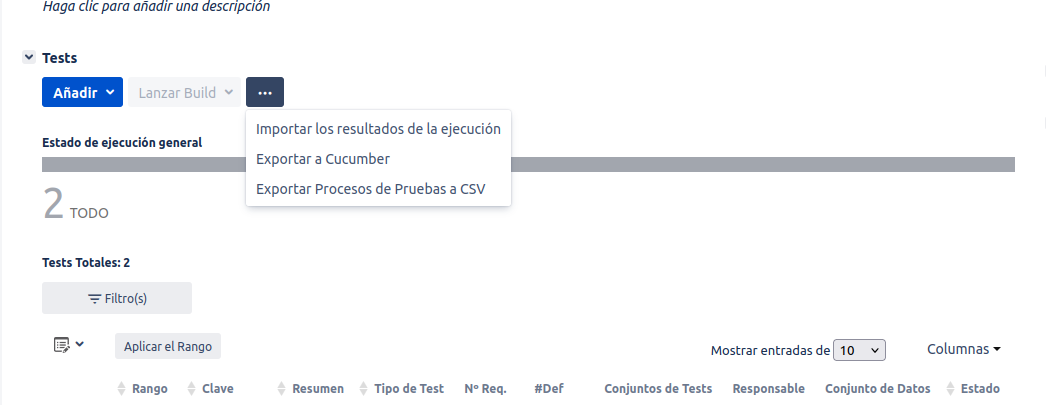
We download the file and if we open it we can see the features, the scenarios and the associated cucumber execution tags:
#language: en
@ 109
Feature: Default


    @ 107
    Scenario: Verify that a user can log in
        Given A registered user
        When I enter the credentials and click Login
        Then I navigate to the home page


    @ 108
    Scenario: Verify that a user can log out
        Given A user already logged in on the home page
        When I click Logout
        Then I navigate to the login page
Importing the .feature through the API
We can use the Xray API on our Jira server to use it in automation tools and get the generated .feature.
This is the documentation for that API action https://docs.getxray.app/space/XRAY/301667739/Exporting+Cucumber+Tests+-+REST
This is an example of how it would look:
curl -v GET 'https://jira.mycompany.com/rest/raven/1.0/export/test?keys= 109' \
-H 'Authorization: Bearer MzEyNzI0MjkwNzg4Oq18MToGqZhHdDcFJcFr4f2dI5Zs' >  109.feature
Now we just need to implement in our Cucumber project the code associated with the steps of those scenarios.
This would be a very basic example of how to implement them:
import io.cucumber.java.en.When;
import io.cucumber.java.en.Given;
import io.cucumber.java.en.Then;

public class LoginLogoutStepDefinitions {

    String userName;
    String userPass;
    String sendCredentials;

    @Given("A registered user")
    public void getAValidUser() {
        userName = "Daniel";
        userName = "s3cr3t";
    }

    @When("I enter the credentials and click Login")
    public void setCredentials() {
        sendCredentials = userName + userPass;
        System.out.println("Sended login credentials");
    }

    @Then("I navigate to the home page")
    public void checkWeAreInDashBoardPage() {
        assertNotNull(sendCredentials);
        System.out.println("The user is at dashboard page");
    }

    @Given("A user already logged in on the home page")
    public void getAUserLogged() {
        getAValidUser(); //Manual preparation
        setCredentials();
        assertNotNull(sendCredentials);
        System.out.println("The user is ALREADY at dashboard page");
    }

    @When("I click Logout")
    public void logoutAction() {
        sendCredentials = null;
        userName = null;
        userPass = null;
        System.out.println("Click on logout");
    }

    @Then("I navigate to the login page")
    public void checkWeAreInLoginPage() {
        assertNull(userName);
        assertNull(userPass);
        assertNull(sendCredentials);
        System.out.println("The user is at dashboard page");
    }
}
And now we run it in our cucumber engine and see that the tests pass:
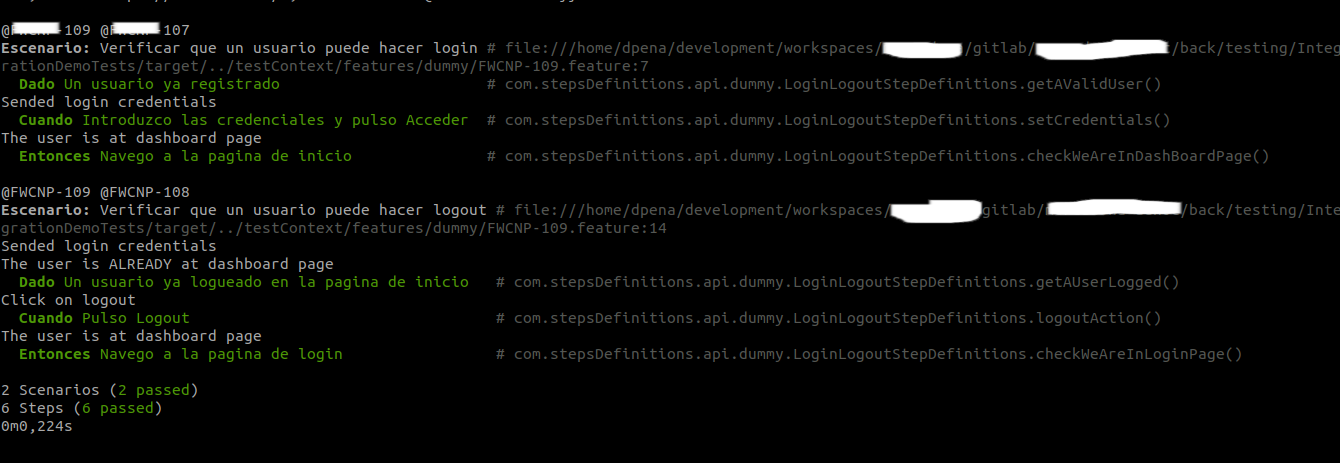
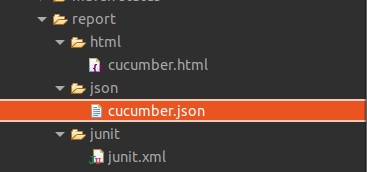
And we get the report in the folder we specified in the execution:
5.Publishing results to the JIRA task
5.1 Manual Results Publishing:
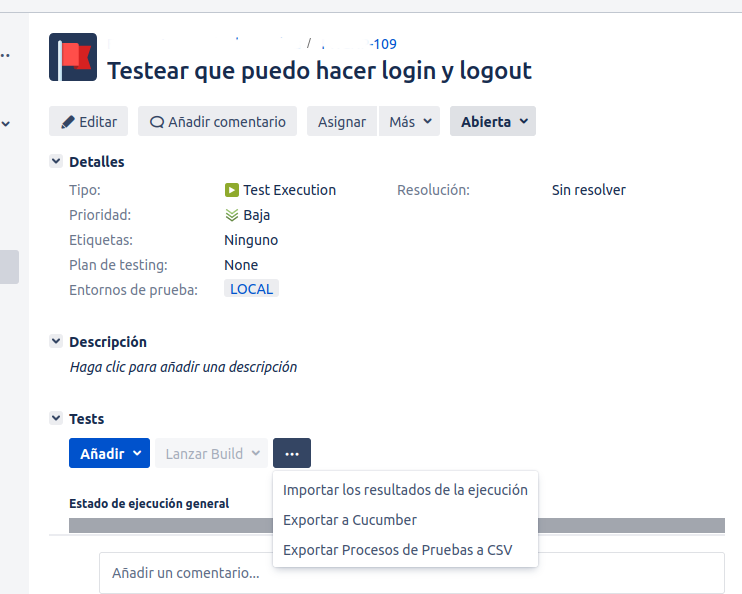
We go to the Test Execution in our JIRA server and click on the Import Execution Results option:
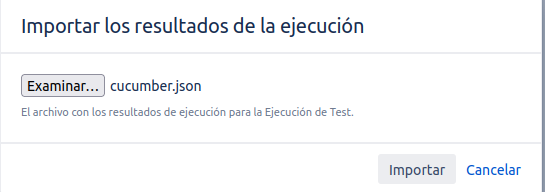
We attach the cucumber.json report:
And we verify that the JIRA task marks the Test Execution as passed correctly:
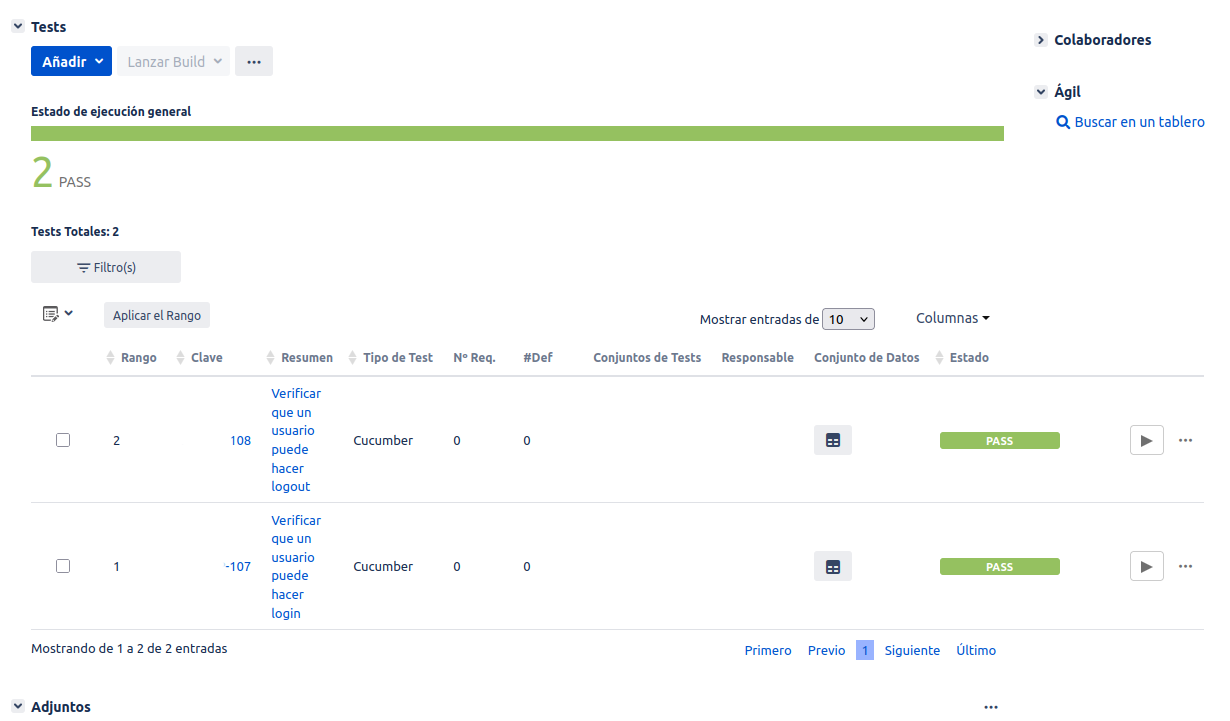
We can go into the detail of each of the Tests included in the Test Execution and see the execution detail:
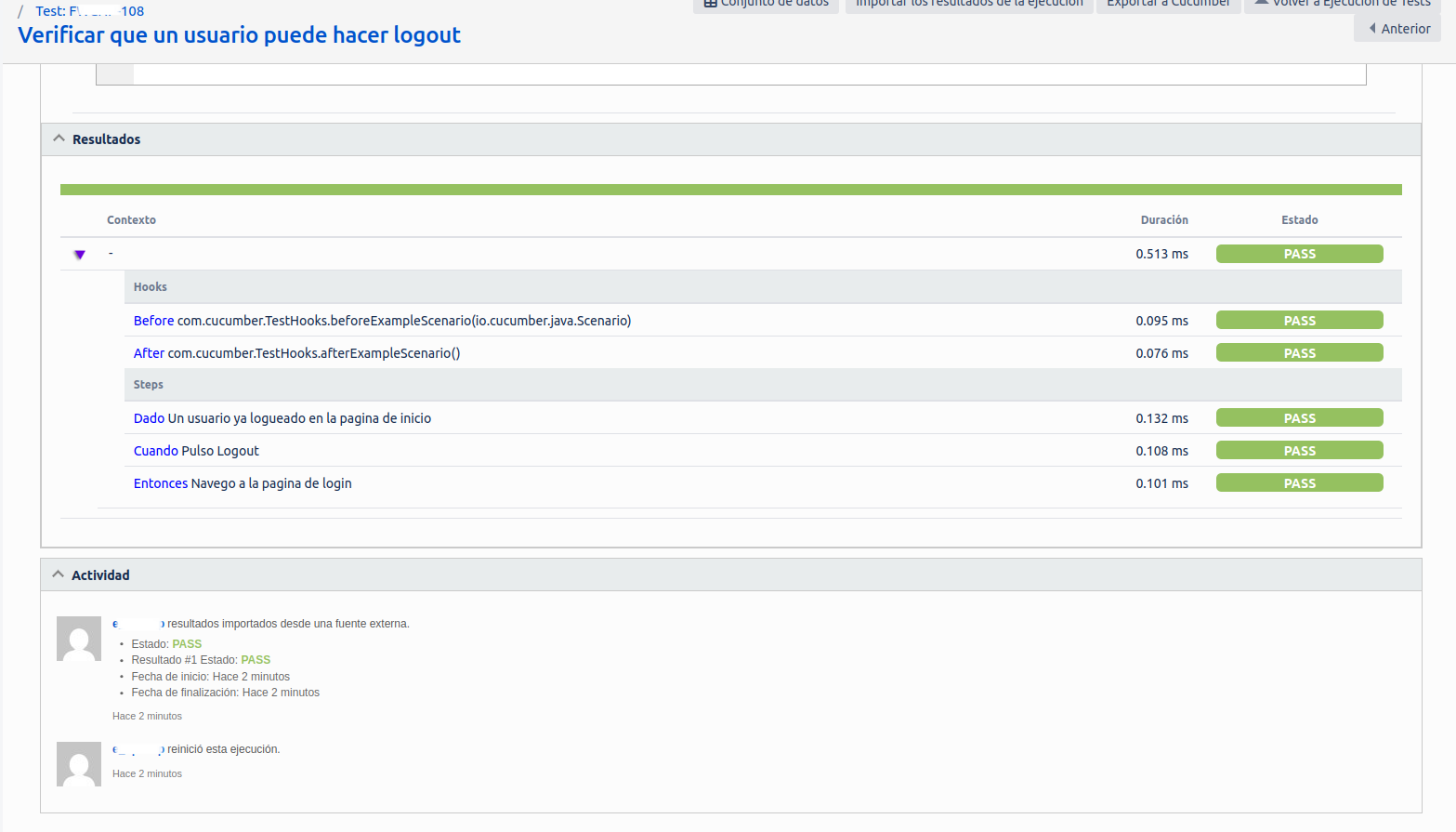
5.2 Publishing Results through the API:
Xray exposes two versions of an API for automations:
There are 2 APIs available simultaneously V1 and V2: - V1 https://docs.getxray.app/space/XRAY/301697335/v1.0 - V2 https://docs.getxray.app/space/XRAY/301405521/v2.0
For importing results this would be an example using the V1 API:
https://docs.getxray.app/space/XRAY/301667997/Import+Execution+Results+-+REST#Cucumber-JSON-results
This would be the curl POST example including the reporter file:
curl -v POST 'https://jira.mycompany.com/rest/raven/2.0/import/execution/cucumber?projectKey=FWCNP' \
-H 'Authorization: Bearer MzEyNzI0MjkwNzg4Oq18MToGqZhHdDcFJcFr4f2dI5Zs' \
-H "Content-Type: application/json" \
--data-binary "@/home/dpena/development/workspaces/mycompany/gitlab/mycompany-adhoc/back/testing/IntegrationDemoTests/target/report/json/cucumber.json"